25 Sep
gadgets

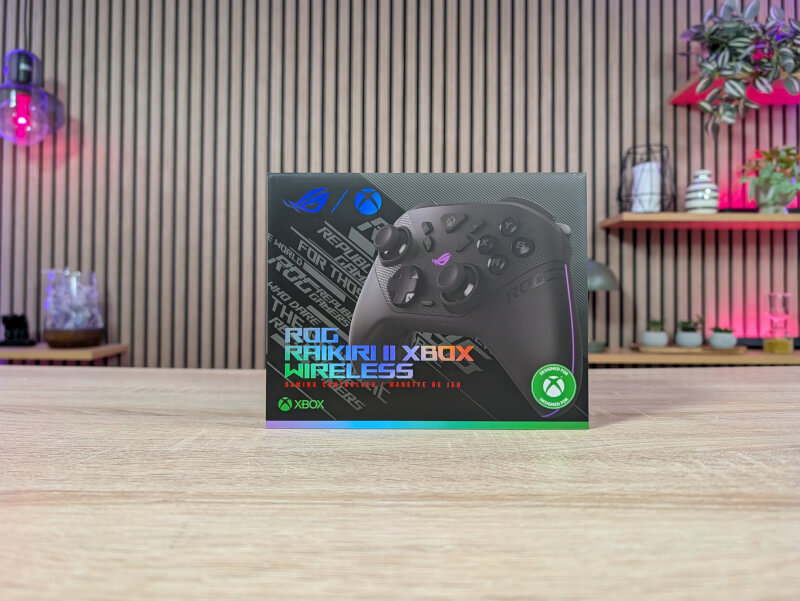
Things worth noting here are of course the upgrades that we get with a controller of this type compared to a standard Xbox controller. These are things like TMR joysticks, Micro-Switch buttons, and if you are planning to buy an ROG Xbox Ally, the Raikiri II is designed specifically with the handheld device in mind.
The first thing you'll see when you open the box for the ROG Raikiri II Xbox Wireless Controller is a nice semi-hard travel case for the controller and accessories. So if you occasionally game on the go, perhaps with an ROG Ally device, you have a handy place to transport your controller.
On the back is a small cable opening so you can insert a USB-C cable and charge your controller while it is stored safely in the travel case.
The travel case isn't the only accessory we get with the ROG Raikiri II, however. We also get a small stand for charging the device. It can be placed on your desk and acts as storage for the controller and, of course, charging.
ASUS has also very conveniently placed a USB port on the front of the charger so you can place the included USB Dongle for the wireless connection there. This way you have your USB dongle placed closer, so you can be sure of an optimal connection.
The travel case also includes two extra-long thumbsticks for the controller.
Moving on to the star of the show, the ROG Raikiri II, the overall design is pretty much in line with a standard Xbox controller. So the ASUS ROG team hasn't tried to reinvent the wheel. I'm personally happy to see that, as after hundreds of hours of gaming, I prefer the feel of an Xbox controller in my hand.
ASUS has of course tweaked the visual design a bit so that it still clearly feels like an ASUS ROG product. We even get a bit of RGB lighting in a small ROG logo on the top of the device and a small stripe down each side of the grip. The last side, however, is completely covered by your hands when you hold the controller. So it's probably mostly meant as decoration when the controller is in the charger.
The underside and trigger buttons have a pleasant micro-textured surface, which is comfortable and gives the feeling of a good grip on the controller.
Since the exterior doesn't differ much from a "normal" Xbox controller, it's good that the ROG team has done a lot with the internal hardware. First, we have the option to choose between three connection types.
There is of course a cable if you prefer the old school connection. However, this is complemented by the option of wireless connection either via the included ASUS ROG SpeedNova USB Dongle or Bluetooth. So you have plenty of flexibility in terms of connection.
The SpeedNova and cable connection have a polling rate of 1000 Hz when connected to a PC and ASUS states a latency of 2.32 ms via cable and 3.54 ms via the SpeedNova connection. If you use the controller with an Xbox, however, you are limited to a Polling Rate of 250 Hz. However, this is a limitation on the Xbox side and not the controller.
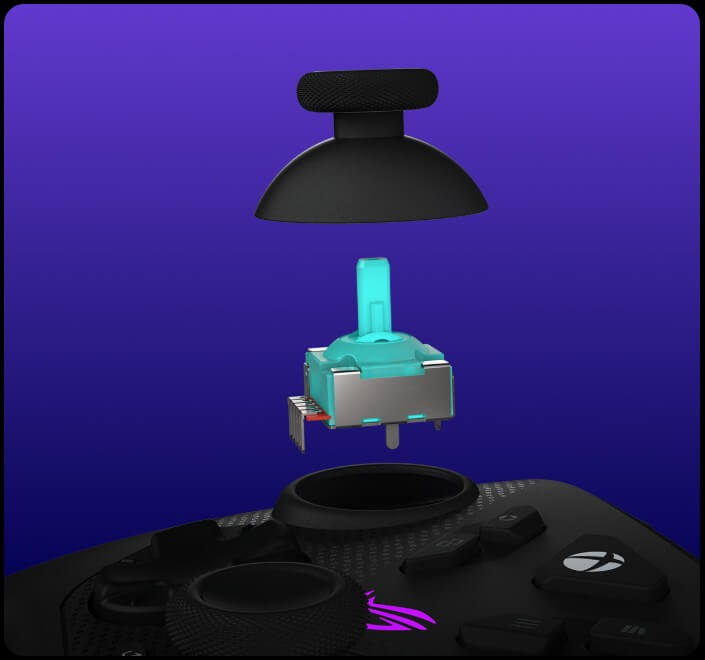
Both thumbsticks on the ROG Raikiri II are Anti Drift TMR joysticks. TMR (Tunneling Magnetoresistance) joysticks are generally considered the optimal joysticks, and also beat the Hall Effect. TMR uses magnetism like the Hall Effect to read the movements of your joystick. However, TMR does it much more sensitively, and thus significantly more accurate than even the Hall Effect.
At the same time, you are virtually free from the risk of Stick Drift, and since you are not dependent on mechanical switches, the durability is also much higher.
In addition to your Thumbsticks, the buttons are of course also very important. Fortunately, ASUS has also made a lot of use of this. You get a standard layout with the buttons, supplemented by the now familiar four alternatives on the underside of the controller.
The buttons on the ABXY, D-Pad, back, bumpers and triggers are all the same Micro-Switch buttons. So they have a pleasant click in the same way we know it from good gaming mice.
The trigger buttons are Dual Mode, allowing you to switch between the fast Micro-Switch option and switch to TMR switches with a longer and more precise press. So you can quickly switch between the fast Micro-Switch for shooting games and the TMR precision for racing games, allowing you to accelerate and brake more accurately.
We get two extra buttons on the ROG Raikiri II, which are designed to work with an ROG Xbox Ally handheld. So here we have added a Command Center and a Library button
Looking at the bottom of the controller, we can see the four buttons we get here. This is also where we find the slider button that switches the trigger buttons between Micro-Switch and TMR. Finally, there are two slider buttons to pay attention to. One switches the wireless connection between USB Dongle and Bluetooth, while the other indicates whether you want to connect to an Xbox or a PC. Finally, we also get a Pair button for the Bluetooth connection.
Very practical, we also get a small storage space for the included USB Dongle, so it can be easily stored safely. This space is found just below the pogo pin contacts for charging via an included charger.
With ROG Raikiri II, ASUS follows their new software trend by using their online solution ASUS Gearlink.
This means that there is no dedicated software, as we know from their Armoury Crate. It is a somewhat lighter solution in terms of resources for your PC and means that all customization of settings etc. can be done through a web browser. The only small drawback is that you now of course need internet access before you can use Gearlink.
In Gearlink, there are quite deep options for customizing Raikiri II, so you can get things exactly how you want them.
There are of course the rather superficial things, like customizing the RGB lighting and battery settings, but the interesting thing in my book is everything else you have options for.
You start with an overview of the many settings on buttons and joysticks, and from there you can dive into each individual part of them.
For the two trigger buttons, it is possible to customize the active zone. So, for example, if you only want it to register your inputs when the button is pressed halfway, you have the option to set that.
For your thumbsticks, there is also the option to customize the dead zone settings, but also how they generally react to your inputs. It is set up as a balance between movement and responsiveness. There are three presets provided as standard, but you are free to customize them as you like, or create your own. There is the option of up to five profiles in total for each thumbstick.
Under buttons you have the option to customize the functions of a total of six buttons. These are the two extra ones on the front and then the four on the underside of the controller. There is not a lot of free play and you can only choose between the 12 standard buttons on a controller. Alternatively, you can specify the buttons to switch between the different profiles for your thumbsticks.
Finally, there is also the option to adjust the vibration in the controller. This can be done individually for the two vibration units in the controller.
The last item on the list is the possibility of calibrating all the TMR units in Raikiri II. That is, the two trigger buttons and the two thumbsticks.
I've had the ROG Raikiri II on my gaming desk for a few weeks and have used it for a good portion of gaming, with a selection of mixed games. It's all been via PC.
The connection has been completely seamless. Simply plug in the included USB dongle and make sure you have selected the PC setting on the back, and you are ready to play.
The gaming experience with the ROG Raikiri II has been super enjoyable. The form factor of an Xbox controller is already my favorite, so I quickly felt at home here.
However, the experience here is a notch above the average controller and even among the best I've tried.
It's a super responsive experience you get from the buttons here, which with the microswitch setup feel more like high-end mouse buttons than the typical and much softer experience you get on a normal controller.
It provides a much more “crisp” experience of the games and a significantly more satisfying feel of the buttons in the game.
The flexibility is also top notch, as you can quickly switch the trigger buttons between the cool micro switches, and then the analog experience with TMR input. This means we get the best of both worlds. So no matter what type of game you play, it's easy to switch to the optimal triggers.
ASUS promises up to 50 hours of battery life if you turn off RGB and vibration. However, I played with both turned on and had more than enough battery for the entire test period. This is also helped by the fact that the controller can be easily charged continuously if you place it in the included holder.
At the time of writing, I can't find the ROG Raikiri II in any Danish stores. However, ASUS has stated a suggested price of $182.99. So it's not a cheap investment and a little more expensive than an Xbox Elite controller. However, it lands very well in line with other similar high-end controllers, such as the Razer Wolverine V3 Pro. However, I think you get more for your money here, as there are updates like TMR sticks.
The ROG Raikiri II is one of the best Xbox/PC controllers I've had the pleasure of trying. ASUS has put together an impressive feature list and done a great job with the controller.
The combination of Micro Switches and TMR sensors, along with the option of a 1000 Hz polling rate on PC, provides a super smooth and responsive gaming experience with ROG Raikiri II.
I have of course not been able to get an impression of the durability in the relatively short test I have done here. However, the durability with Micro Switches and TMR sensors should be expected to be on the good end.
I also really appreciate ASUS' software solution, which is functional with lots of options, but cut to the chase with a lightweight online solution through Gearlink.
We end up with a final score of 9 and a Great Product Award for a feature-rich controller from the top of the stack.
Benefits
Disadvantages: